LittleFS interactive shell for W25Q64 SPI NOR
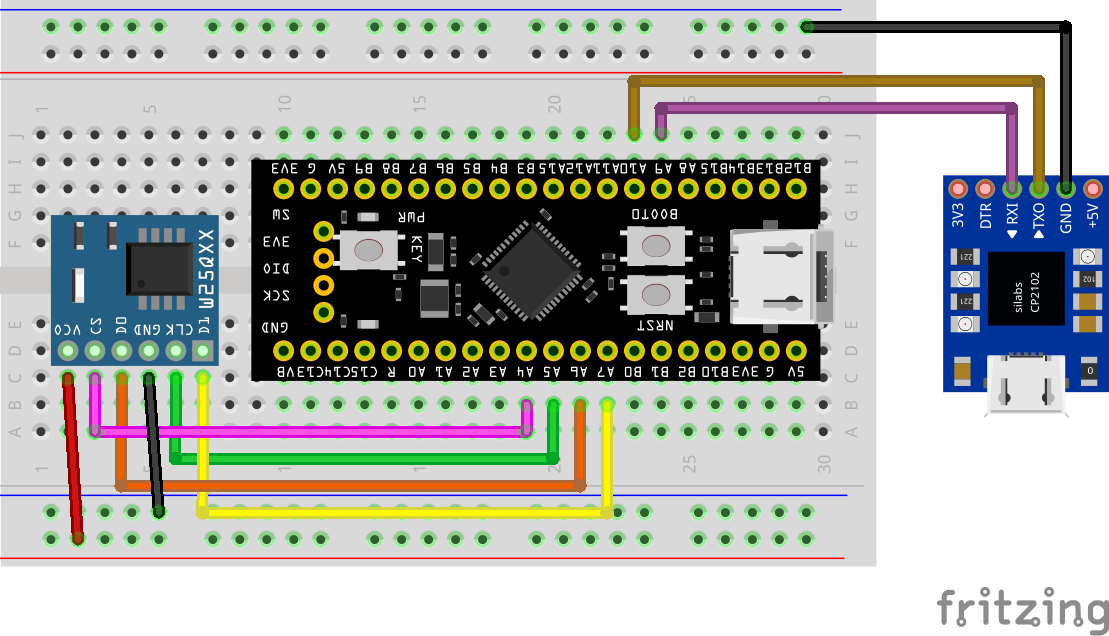
Lately I have working on drivers for Winbond W25Q64 SPI NOR flash chip for my STM32-pio-libs project. Soon enough I wrapped the drivers for it which you can check out at STM32-pio-libs/W25Q64-flash. Well this is a good start in having persistent storage but having to work with raw address on storage medium can become tireing soon. You need a filesystem to make your life simpler, in such environment FAT32 is what widely used but I wanted something even more simpler and easier to work with and I stumbled on littleFS with just two source files this is exactly what I was looking for. I spend some more time getting littleFS working with the W25Q64 driver which resulted in in a separate project repo STM32-pio-libs/W25Q64-lfs. This is an out-of-box glue layer between W25Q64 and littleFS. Now you have freedom of creating files, directories, use paths.
Now this setup is great but it lacks one important need. If you use SD card, you can just unplug the SD card from MCU, plug in to PC and you can transfer files. But we don't have the same with the above setup, but I really wanted this. So I made something, F411-W25Q64-lfs-cli. It is a CLI interface to interact with littleFS on W25Q64 for STM32F411. You can flash it stand alone or keep it along side your existing program. This is a full filesystem interactive shell with ability to upload and download files form the flash through your existing UART serial connection.
The CLI
Stage 1: Intro
My specific setup done over WeAct STM32F411CE BlackPill, pin connection you can check on the github. NOTE: This can be ported over to other MCU and pins easily. Connect to your serial monitor with the baud you have configured, I use 115200. You'll greeted with the ascii art and a shell, use the help command
    ___ __  __  __     ___________    ________    ____
   / (_) /_/ /_/ /__  / ____/ ___/   / ____/ /   /  _/
  / / / __/ __/ / _ \/ /_   \__ \   / /   / /    / /
 / / / /_/ /_/ /  __/ __/  ___/ /  / /___/ /____/ /
/_/_/\__/\__/_/\___/_/    /____/   \____/_____/___/

JEDEC: 20 70 17
LFS mounted
/# help
Available commands:
  ls [path]      List directory contents
  lsr [path]     Recursively list all files
  cat <file>     Print file contents
  touch <file>   Create a new file (prompts for content)
  mkdir <dir>    Create a directory
  rm <path>      Recursively remove a file or directory
  cd [dir]       Change directory (no arg goes to /)
  pwd            Print current directory
  info           Show filesystem disk usage
  receive        Receive a file from the PC
  send           Send a file to the PC
  help           Show this message
/#
/#
Stage 2: Basic operation
Now we can do some basic filesystem operation, use the ls command to list the files and directories in the current working directory. If you don't have anything you can create new directory using the mkdir command or a file using touch command. The touch command is different from UNIX shell, it creates the file and you can enter content immediately, keep typing and stop by entering EOL on a new line. There is no io redirection or piping. And then use cd command to change the CWD.
/#
/# ls
/# touch file.txt
Keep typing your text, when done type exact "EOF" on a new line

this is a new file
this is the second line
EOF
Written 2 lines to new file
Created /file.txt
/# ls
r       43      file.txt
/# mkdir logs
Directory created: /logs
/# ls
r       43      file.txt
d       0       logs
/# cd logs
Current directory: /logs
/logs# touch log1.txt
Keep typing your text, when done type exact "EOF" on a new line

log message 1
log message 2
log message 3
EOF
Written 3 lines to new file
Created /logs/log1.txt
/logs#
The out ls command has three columns, first column is f/d(file/directory) then for files second is size then third is the name.
Stage 3: Exploration
Like UNIX, you can specify a directory with ls to list that. Use cat with a filename to dump its content. It doesn't work like normal UNIX cat it can only take one filename. Then there is a special command called lsr(list recursively) which will list all the files in the FS. Finally rm can be used to delete directory or file.
/#
/# ls
r       43      file.txt
d       0       logs
/# ls logs
r       42      log1.txt
/# cat file.txt
this is a new file
this is the second line
/# cat logs/log1.txt
log message 1
log message 2
log message 3
/# ls asddf
Unable to open dir /asddf
/# cat asdf
cat: /asdf: No such file
/#
/# lsr
/file.txt
/logs/log1.txt
/#
/# rm file.txt
/# ls
d       0       logs
/#
Stage 4: Info
You can use the pwd command to print current working directory, but this is sort of redundant as you can see the pwd in the shell prompt itself. Then there is the info command which shows you stats about your flash.
/# pwd
CWD: /
/# cd logs
Current directory: /logs
/logs# pwd
CWD: /logs
/logs#
/logs# info
Filesystem information
----------------------
Block size   : 4096 bytes
Total blocks : 2048
Used blocks  : 4
Free blocks  : 2044
Total size   : 8388608 bytes
Used size    : 16384 bytes
Free size    : 8372224 bytes
/logs#
Stage 5: File upload
Now the fun part, to upload a file to your flash first from the cli cd into the directory you want to store the uploaded file then IMPORTANT: close the serial monitor before you do use the pcfstool.
/# mkdir assets
Directory created: /assets
/# cd assets
Current directory: /assets
/assets#
--- exit ---
anurag@arch:~$
Compile the pcfstool and upload the file.
gcc pcfstool.c -o pcfstool

./pcfstool --port /dev/ttyACM0 --upload ~/Downloads/FS_bb.png
It will start uploading the file at about rate of 8.45 KiB/s if you use 115200 baud, you'll see some dump of the packets being sent. You may get appropriate error message about
- Timeout waiting for packet(if connection is interrupted)
- Not enough storage.
- File already exists at that path
- Could not create file on flash
Connected to: /dev/ttyACM0

||| START IGNORE RECEIVE BYTES |||
����/assets# receive
Receiving files
�T�T
||| END IGNORE RECEIVE BYTES |||

Sending packets!!
SENT PACKET 1: [f4, 8, 1, 0, 69, 6d, 78, 36, 71, 5f, 67, 70, 75, 5f, 64, 69, 73, 70, 6c, 61, 79, 5f, 73, 74, 61, 63, 6b, 2e, 6d, 64, 0, 0, 0, 0, 0, 0, 0, 0, 0, 0, 0, 0, 0, 0, 0, 0, 0, 0, 0, 0, 0, 0, 0, 0, 0, 0, 0, 0, 0, 0, 0, 0, 0, 0, 0, 0, 0, 0, 0, 0, 0, 0, 0, 0, 0, 0, 0, 0, 0, 0, 0, 0, 0, 0, 0, 0, 0, 0, 0, 0, 0, 0, 0, 0, 0, 0, 0, 0, 0, 0, 0, 0, 0, 0, 0, 0, 0, 0, 0, 0, 0, 0, 0, 0, 0, 0, 0, 0, 0, 0, 0, 0, 0, 0, 0, 0, 0, 0, 1, 0, 0, 0, ]
Board CRC : 0x0B68210E
Our CRC   : 0x0B68210E
------- Truncated ------
SENT PACKET 1375: [b2, 25, f3, ef, 70, 1c, 47, 95, 4a, 85, 9a, 2a, 0, 0, 0, 0, 0, 20, 1a, f6, fb, fd, 87, 4, 2a, 9d, 4e, 47, c6, 18, fe, 54, 1, 0, 0, 0, 0, 0, d1, f0, b7, ed, 96, eb, f5, ba, da, ed, b6, e2, f1, b8, 24, 11, aa, 0, 0, 0, 0, 0, 80, 68, b0, 2c, 4b, 85, 42, 41, 8b, c5, e2, 8f, f6, a5, 52, 29, b5, 5a, 2d, 15, 8b, c5, 87, 71, 73, bf, df, ef, 1c, 2b, 0, 0, 0, 0, 0, 88, a, cf, f3, e4, fb, fe, cb, 42, b5, c6, 18, 25, 93, 49, 65, 32, 19, e5, 72, 39, 19, 63, 42, 6b, be, 2, fd, 75, 19, f4, 4, 22, 5f, 5, 0, 0, ]
Board CRC : 0x07604428
Our CRC   : 0x07604428
SENT PACKET 1376: [37, c1, 0, 0, 0, 0, 49, 45, 4e, 44, ae, 42, 60, 82, 0, 0, 0, 20, 1a, f6, fb, fd, 87, 4, 2a, 9d, 4e, 47, c6, 18, fe, 54, 1, 0, 0, 0, 0, 0, d1, f0, b7, ed, 96, eb, f5, ba, da, ed, b6, e2, f1, b8, 24, 11, aa, 0, 0, 0, 0, 0, 80, 68, b0, 2c, 4b, 85, 42, 41, 8b, c5, e2, 8f, f6, a5, 52, 29, b5, 5a, 2d, 15, 8b, c5, 87, 71, 73, bf, df, ef, 1c, 2b, 0, 0, 0, 0, 0, 88, a, cf, f3, e4, fb, fe, cb, 42, b5, c6, 18, 25, 93, 49, 65, 32, 19, e5, 72, 39, 19, 63, 42, 6b, be, 2, fd, 75, 19, f4, 4, 22, 60, 5, 0, 0, ]
Board CRC : 0xF5DB3136
Our CRC   : 0xF5DB3136

File sent successfully
Connect back with your serial monitor and check your file.
/assets#
/assets# ls
r       175886  FS_bb.png
/assets# cd
/# lsr
/assets/FS_bb.png
/logs/log1.txt
/#
Stage 5: File download
To download a file from the flash, first again close the serial monitor and the pcfstool with the --download flag. It will list all the files in on the flash, enter path of file you like to download.
./pcfstool --port /dev/ttyACM0 --download


Connected to: /dev/ttyACM0

||| START IGNORE RECEIVE BYTES |||

/# send
Sending files
/assets/FS_bb.png
/assets/imx6q_gpu_display_stack.md
/logs/log1.txt
�T�T
||| END IGNORE RECEIVE BYTES |||
Enter filepath: /logs/log1.txt
Requesting file [/logs/log1.txt]
SENT PACKET 1: [2f, 6c, 6f, 67, 73, 2f, 6c, 6f, 67, 31, 2e, 74, 78, 74, 0, 0, 0, 0, 0, 0, 0, 0, 0, 0, 0, 0, 0, 0, 0, 0, 0, 0, 0, 0, 0, 0, 0, 0, 0, 0, 0, 0, 0, 0, 0, 0, 0, 0, 0, 0, 0, 0, 0, 0, 0, 0, 0, 0, 0, 0, 0, 0, 0, 0, 0, 0, 0, 0, 0, 0, 0, 0, 0, 0, 0, 0, 0, 0, 0, 0, 0, 0, 0, 0, 0, 0, 0, 0, 0, 0, 0, 0, 0, 0, 0, 0, 0, 0, 0, 0, 0, 0, 0, 0, 0, 0, 0, 0, 0, 0, 0, 0, 0, 0, 0, 0, 0, 0, 0, 0, 0, 0, 0, 0, 0, 0, 0, 0, 1, 0, 0, 0, ]
Board CRC : 0x0F73C397
Our CRC   : 0x0F73C397
SENT PACKET 2: [0, 0, 0, 0, 0, 0, 0, 0, 0, 0, 0, 0, 0, 0, 0, 0, 0, 0, 0, 0, 0, 0, 0, 0, 0, 0, 0, 0, 0, 0, 0, 0, 0, 0, 0, 0, 0, 0, 0, 0, 0, 0, 0, 0, 0, 0, 0, 0, 0, 0, 0, 0, 0, 0, 0, 0, 0, 0, 0, 0, 0, 0, 0, 0, 0, 0, 0, 0, 0, 0, 0, 0, 0, 0, 0, 0, 0, 0, 0, 0, 0, 0, 0, 0, 0, 0, 0, 0, 0, 0, 0, 0, 0, 0, 0, 0, 0, 0, 0, 0, 0, 0, 0, 0, 0, 0, 0, 0, 0, 0, 0, 0, 0, 0, 0, 0, 0, 0, 0, 0, 0, 0, 0, 0, 0, 0, 0, 0, 2, 0, 0, 0, ]
Board CRC : 0x8EDC5532
Our CRC   : 0x8EDC5532
SENT PACKET 3: [0, 0, 0, 0, 0, 0, 0, 0, 0, 0, 0, 0, 0, 0, 0, 0, 0, 0, 0, 0, 0, 0, 0, 0, 0, 0, 0, 0, 0, 0, 0, 0, 0, 0, 0, 0, 0, 0, 0, 0, 0, 0, 0, 0, 0, 0, 0, 0, 0, 0, 0, 0, 0, 0, 0, 0, 0, 0, 0, 0, 0, 0, 0, 0, 0, 0, 0, 0, 0, 0, 0, 0, 0, 0, 0, 0, 0, 0, 0, 0, 0, 0, 0, 0, 0, 0, 0, 0, 0, 0, 0, 0, 0, 0, 0, 0, 0, 0, 0, 0, 0, 0, 0, 0, 0, 0, 0, 0, 0, 0, 0, 0, 0, 0, 0, 0, 0, 0, 0, 0, 0, 0, 0, 0, 0, 0, 0, 0, 3, 0, 0, 0, ]
Board CRC : 0x8A1D4885
Our CRC   : 0x8A1D4885
SENT PACKET 4: [0, 0, 0, 0, 0, 0, 0, 0, 0, 0, 0, 0, 0, 0, 0, 0, 0, 0, 0, 0, 0, 0, 0, 0, 0, 0, 0, 0, 0, 0, 0, 0, 0, 0, 0, 0, 0, 0, 0, 0, 0, 0, 0, 0, 0, 0, 0, 0, 0, 0, 0, 0, 0, 0, 0, 0, 0, 0, 0, 0, 0, 0, 0, 0, 0, 0, 0, 0, 0, 0, 0, 0, 0, 0, 0, 0, 0, 0, 0, 0, 0, 0, 0, 0, 0, 0, 0, 0, 0, 0, 0, 0, 0, 0, 0, 0, 0, 0, 0, 0, 0, 0, 0, 0, 0, 0, 0, 0, 0, 0, 0, 0, 0, 0, 0, 0, 0, 0, 0, 0, 0, 0, 0, 0, 0, 0, 0, 0, 4, 0, 0, 0, ]
Board CRC : 0x945A1880
Our CRC   : 0x945A1880

Receiving packets!!
Receiving: log1.txt (42 bytes) -> ./log1.txt
Saved: ./log1.txt
And we can check the content of the file
anurag@anurag-SK5800:~/F411-W25Q64-lfs-cli$ cat log1.txt
log message 1
log message 2
log message 3
anurag@anurag-SK5800:~/F411-W25Q64-lfs-cli$
The Protocol
Both send and receive commands on the shell side, and --upload and --download on the pcfstool side, use the same custom protocol underneath. It is a simple stop-and-wait scheme over UART where data is broken into fixed 128-byte packets and each packet is acknowledged before the next one is sent.
Handshake
Before any data flows, both sides synchronize using a 4-byte start pattern {0x95, 0x54, 0x95, 0x54}. This lets the receiver know actual packet data is about to begin and helps it skip over any stray bytes or shell echo that might be sitting in the buffer. You can actually see this in the pcfstool output too, it prints them in the ignore block.
||| START IGNORE RECEIVE BYTES |||
����/assets# receive
Receiving files
<0x95><0x54><0x95><0x54>
||| END IGNORE RECEIVE BYTES |||
Packet structure
Every packet is exactly 128 bytes on the wire. But internally, both sides work with a 132-byte buffer. After the 128 bytes are received or before they are sent, a 4-byte packet sequence counter is appended at bytes [128..131] in the buffer. This counter is never transmitted, it only lives in memory and is used purely for the CRC computation so the integrity check covers both the content and the ordering of packets.
 Wire (128 bytes)         Buffer (132 bytes, in memory)
┌────────────────────┐   ┌────────────────────┬──────────┐
│   128 bytes data   │ → │   128 bytes data   │ SEQ (4B) │
└────────────────────┘   └────────────────────┴──────────┘
                                                    │
                                             CRC computed
                                             over all 132B
First packet: metadata
The very first packet is not file data, it is a metadata packet describing the file that is about to be transferred. The layout is:
Bytes [0..3]     →  filesize as uint32_t (little-endian)
Bytes [4..103]   →  filename, null-terminated, max 100 chars
Bytes [104..127] →  zero padding
So when you see the first packet in the pcfstool output:
SENT PACKET 1: [f4, 8, 1, 0, 46, 53, 5f, 62, 62, 2e, 70, 6e, 67, 0, 0 ...]The first four bytes f4 08 01 00 are 0x000108F4 = 67828 which is the filesize in bytes. The bytes that follow are the ASCII codes of the filename FS_bb.png and then zeros filling the rest of the packet. After verifying the CRC on this packet the receiver knows how much data to expect and what to name the file.
Remaining packets: data
After the metadata packet, raw file data flows in 128-byte chunks, one packet at a time. If the file size is not a multiple of 128, the last packet is zero-padded to fill the full 128 bytes. The receiver uses the filesize from the metadata packet to know exactly how many bytes to write, so the padding is just discarded.
Packet 1    →  metadata  (filesize + filename)
Packet 2    →  bytes [0   .. 127]  of file
Packet 3    →  bytes [128 .. 255]  of file
Packet 4    →  bytes [256 .. 383]  of file
...
Packet N    →  bytes [last chunk, zero-padded to 128]
Acknowledgement and CRC
After each packet is received, the receiver sends back a 4-byte CRC32 as acknowledgement. The STM32 hardware CRC peripheral computes it by feeding all 33 words (128 data bytes + 4-byte sequence counter = 132 bytes = 33 × 4-byte words) into the CRC data register one word at a time using polynomial 0x04C11DB7. The sender independently computes the same CRC on its copy of the buffer, which has the same sequence counter, and compares. A match means the packet was received intact and in the right order, only then does the next packet go out.
Sender                          Receiver
  │                                 │
  │──── 128 bytes (packet N) ──────►│
  │                                 │  append SEQ counter at [128..131]
  │                                 │  CRC32(packet[0..131]) → hardware CRC
  │◄─── 4 bytes CRC ───────────────│
  │  compute CRC locally            │
  │  compare → match → continue     │
  │                                 │
  │──── 128 bytes (packet N+1) ────►│
If there is a mismatch or a timeout, the transfer is aborted. There is no retry, the whole operation has to be restarted. This is fine for a tool like this where you are sitting at a terminal and can just run the command again.
Error codes
If anything goes wrong on the MCU side, instead of a CRC, it sends back a 4-byte sentinel error code and aborts. These are pretty self explanatory.
| Code | Meaning |
|---|---|
0xF1F1F1F1 | Timeout waiting for packet |
0xF2F2F2F2 | File already exists on flash |
0xF3F3F3F3 | Could not create file on flash |
0xF4F4F4F4 | Requested file does not exist |
0xF5F5F5F5 | Requested path is not a regular file |
0xF6F6F6F6 | Not enough space on flash |
At 115200 baud this gives you around 8.45 KiB/s throughput which is plenty for config files, logs, small assets. For a large binary like the FS_bb.png in the example above which is around 175 KB, it takes about 20 seconds.